
Editor’s note: our interviewee’s name has been changed at his request. His work in patent litigation requires confidentiality.
Abstract: Martin Reeve uses Understand to protect his clients’ software development patents. He works independently and relies on Understand to sift through thousands of lines of code. The features he finds most useful for his needs are Browse Mode, Project Analysis Log, the C/C++ Fuzzy Parser, Entity Filter, Information Browser, Function Call Graphs, Annotations, and Favorites. Using Understand as his primary tool, Martin protects his clients’ code from active threats.
For 20 years, Martin Reeve has used Understand to uphold his clients’ software development patents from entities that threaten to infringe upon the patent’s protection. What began as a part-time endeavor eventually blossomed into a full-time occupation. In a conversation with Martin, he explained the nature of his work and the important role Understand plays in what he does.
But first, let’s define what we’re talking about. The University of Washington¹ provides the following explanation of software patent protection:
A patent, if issued, allows the owner to prohibit others from using the patented invention. For software, the patented invention is often a method of calculating something. The copyright protects the actual code itself, but would not stop someone else from creating their own code that implemented the same method.
Software Innovation Patents & Copyrights, University of Washington CoMotion
In other words, don’t steal someone else’s code. (Didn’t we learn about plagiarism in school?)
Martin is hired to be an organization’s first line of defense against would-be-code-stealers. And if you’re into spoiler alerts, here it is: He’s really good at what he does. When we asked him to explain his craft in more detail, he said, “I work in patent litigation settings. My job is to go in and examine the code and figure out whether it does the steps that are in the patent.” Sifting through thousands of lines of code without reference material is hard work, and he emphasized that he faces active resistance in his effort to keep his clients’ work safe.
Martin’s Workflow Using Understand
All this talk about “resistance” and “protection” makes Martin’s work sound like the stuff of superheroes. And like every good superhero, he has a trusted sidekick: Understand. Martin has been using Understand for 20 years, and it’s the best way that he’s found to analyze any given codebase.
Browse Mode
When writing code in Understand, most users work in Edit Mode. For Martin, however, Browse Mode is his preferred method of operation. When in Browse Mode, entities in the code act as links, and clicking a link moves you to the declaration of that particular entity. At the same time, the Information Browser updates to show details about the newly selected entity. Navigating the code in this way is quick and efficient, which is why Martin finds it so appealing. But hold on tight, folks, because we’re just getting started—Martin uses a variety of features to do his work!
Project Analysis Log
Most people use Understand to comprehend their own code or inherited code. Martin, on the other hand, is lucky if he has a complete codebase at his disposal. “Unlike your clients who are using [Understand] to work with code they’ve developed, or inherited legacy code where they both have and know what a complete set of code is, that’s not the case in my environment,” he said. “I rarely get a complete, compilable set of code. That’s extremely rare.”
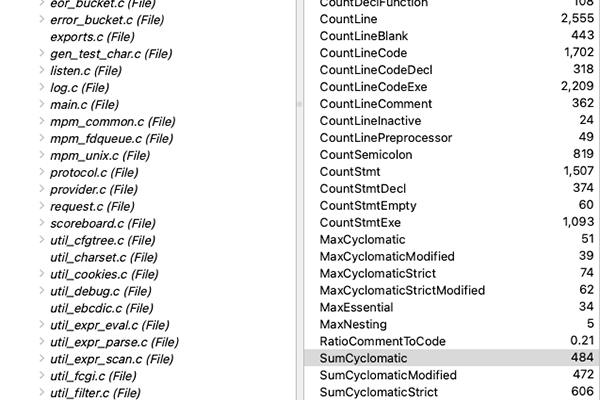
So, before Martin can dive deep into his project, he has to get his bearings. Running a Project Analysis provides him with a summary of the project and identifies errors and warnings that may indicate missing code. This information is displayed in the Analysis Log and is a great place for him to start.
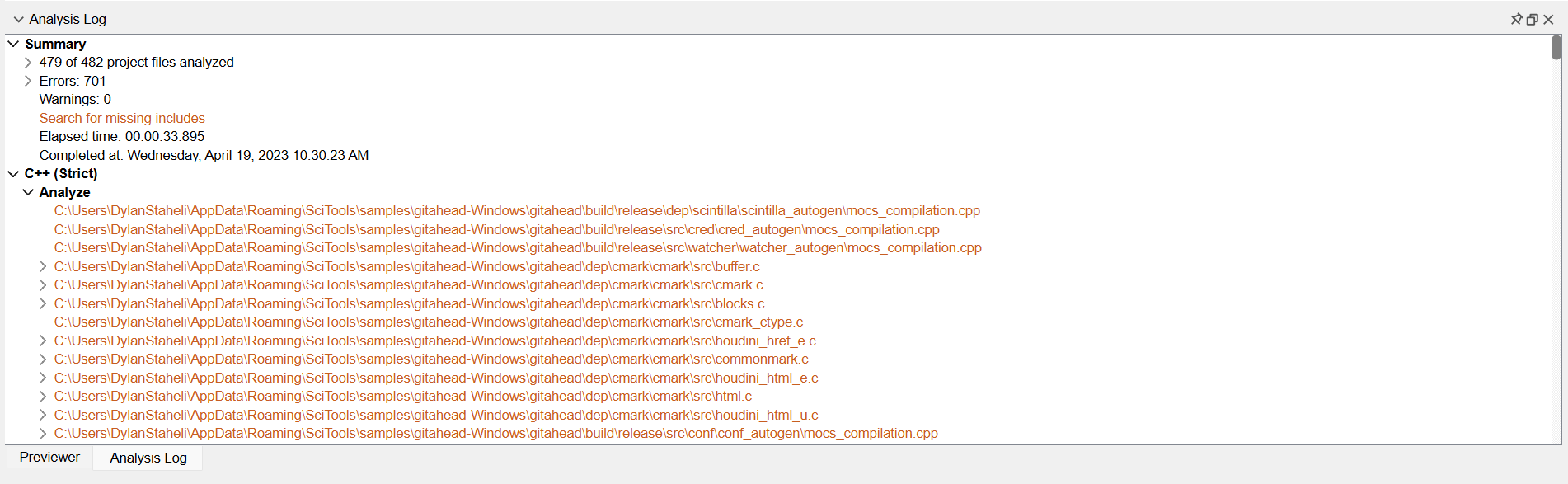
Additionally, Understand offers a Fuzzy parsing mode for C/C++ that tolerates incomplete build information. Since Martin rarely receives a complete, compilable set of code, Fuzzy parsing lets him get a first look without the include paths and macro definitions that strict parsing needs.
Entity Filter and Information Browser
As if working with accessible code isn’t hard enough, Martin dons his detective cap to search for code that is missing or to identify existing code that is most irrelevant to the project. It’s a tricky process, but Understand has the tools he needs to find what he’s looking for.
Understand’s navigation tools make searching through code simple. As someone whose purpose is to identify specific components of a codebase, Martin appreciates the luxury that Understand’s code navigation features afford him. In fact, these features are right where he likes to begin. “That’s one of the initial tasks that I do is try to find out the stuff that I don’t have,” he said. “The opposite of that is figuring out the stuff [my client has] given me that I don’t need.”
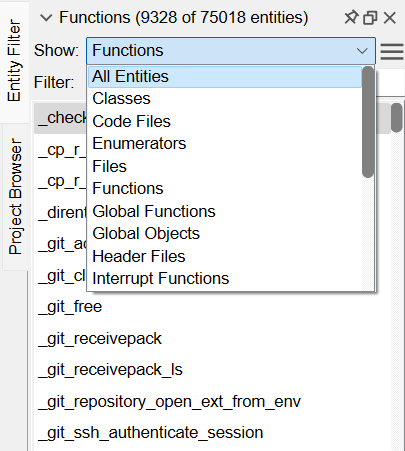
Whether you’re looking for something specific or something that isn’t there, filtering your results using search bars is a good way to find what you’re looking for. Understand’s Entity Filter allows Martin to search for specific components of code. The Entity Filter provides a quick list of the entity type. From there, the list can be filtered to match a text string. Sometimes Martin is even interested in searching for undefined entities—yes, the Entity Filter does that, too!
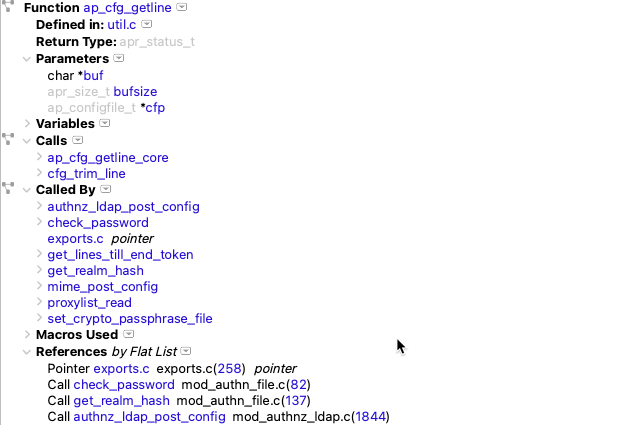
Once Martin sets his parameters using the Entity Filter, he moves his attention to the Information Browser. The Information Browser is synced with the Entity Filter to show all of the information Understand knows about the selected entity. This information is displayed as a collapsible chart and contains data such as value, type, references, calls, called by, architectures, graphs, metrics, and more. Martin finds related Call Graphs to be especially helpful information.
Function Call Graphs
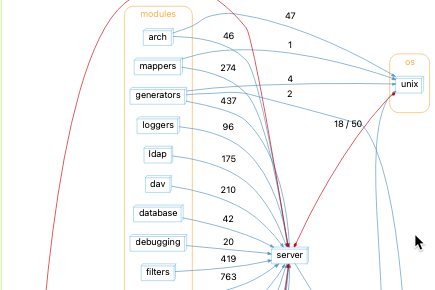
While the Information Browser provides a textual compilation of all the information related to a particular entity, visual representations of code can be especially insightful. Using Call Graphs, Martin walks through the code visually, identifying specific relationships between components of the code. When the goal is to protect his clients’ software patents, using graphs to see exactly how the code works is invaluable to Martin.
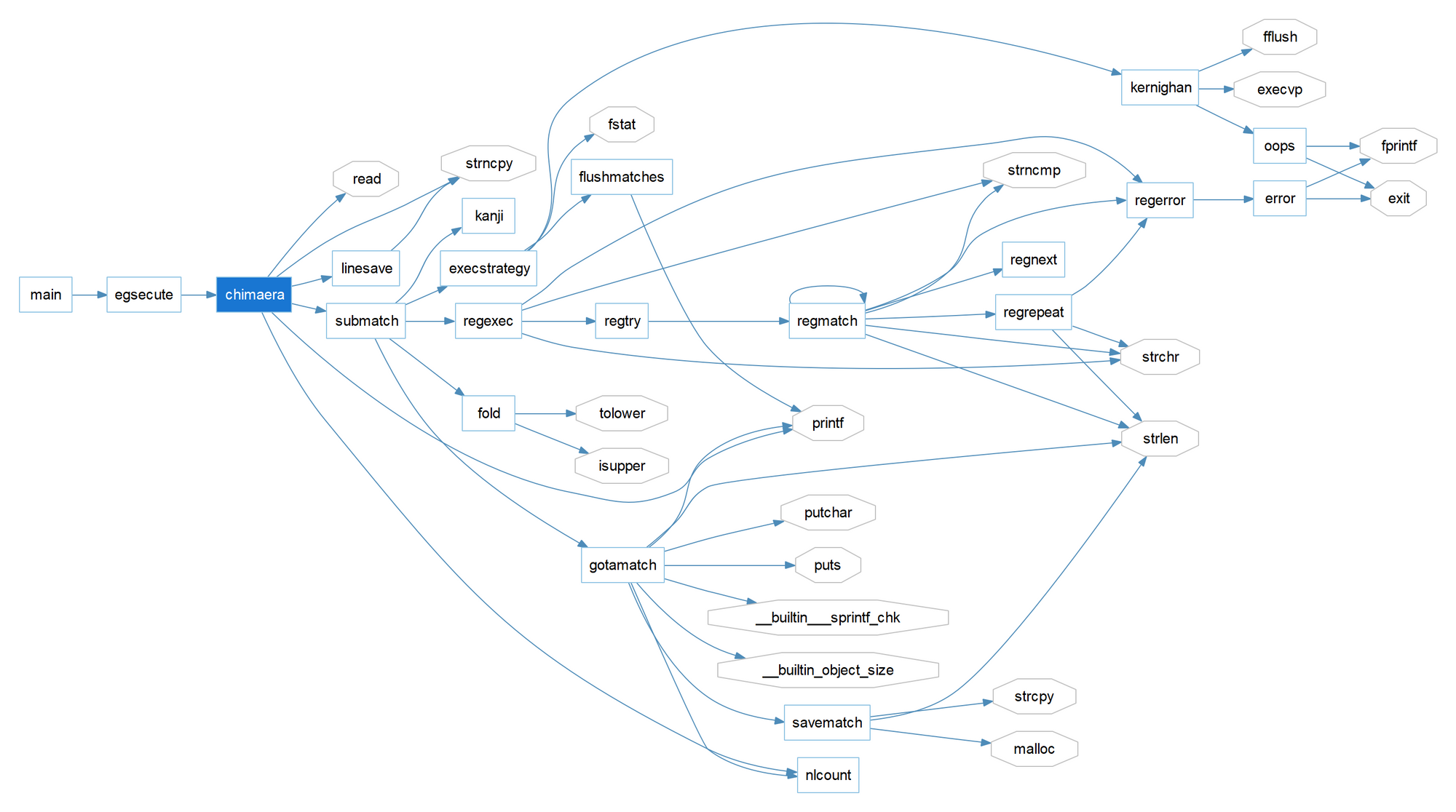
chimaera — its callers on the left, everything it reaches on the right.Annotations and Favorites
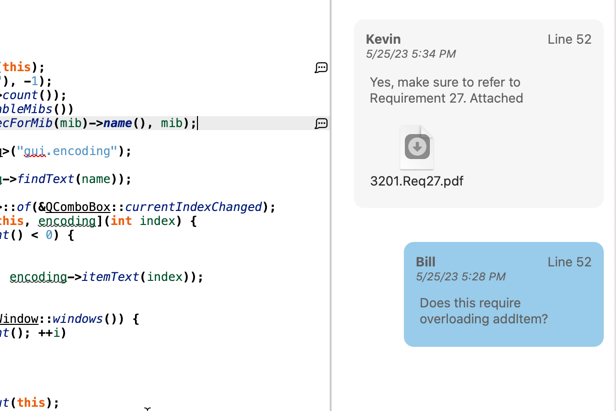
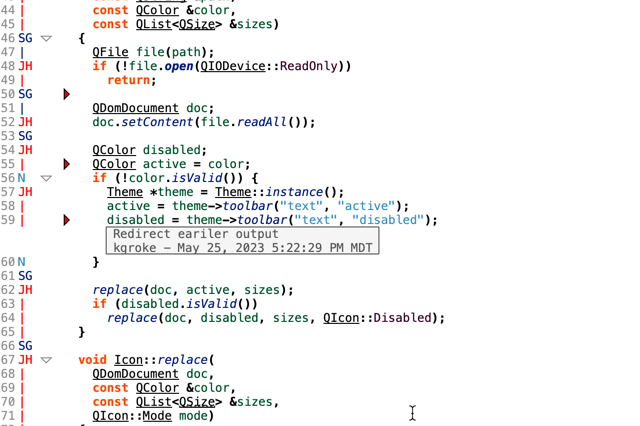
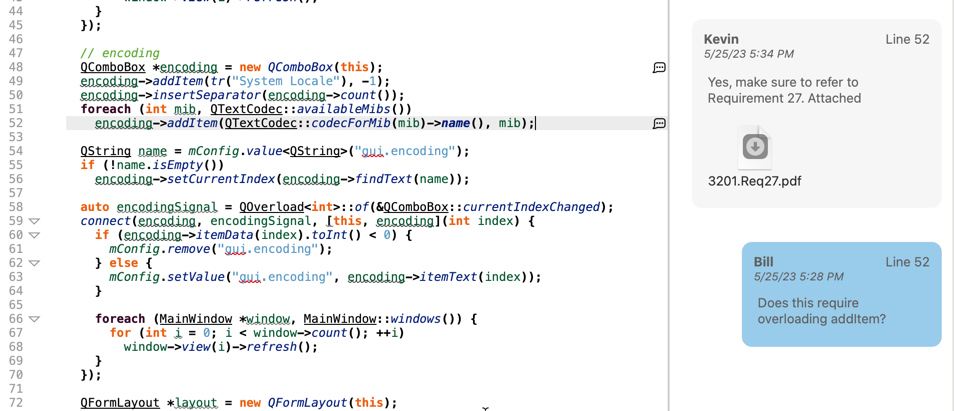
When managing a large project, it’s easy to get lost. Martin uses Annotations and Favorites to keep notes about his work. These notes help him keep track of his progress throughout the duration of his project. For example, Martin uses Favorites to label specific locations within his code. Favorites can be grouped together to track which components of code are related. “I’ve been using the Annotations and Favorites, and they can be really useful,” said Martin. “What I’ve actually done before is stuck in a [Favorite] and [arranged] it to remember that two things are associated.” Annotations and Favorites are a good way to track your work and share it with clients, effectively keeping everybody in the loop—an important part of collaborative projects.
Software Patent Protection
In a world where information is vulnerable, Martin Reeve protects his clients’ software patents by using Understand to navigate and analyze code. He effectively does so by using a variety of Understand features, including Browse Mode, the Project Analysis Log, Fuzzy parsing, the Entity Filter, the Information Browser, Function Call Graphs, Annotations, and Favorites. Our conversation with Martin gave us valuable insight into how our customers use Understand, and it was an opportunity for Martin to learn more about how to get the most out of his favorite static code analysis tool.